
Account
Add Additional Sites
You can track multiple websites with a single SourceTag account. Each site gets its own tracking script, channel configuration, and field settings.
How to add a site
- Log in to your SourceTag dashboard
- From the Sites page, click Add Site
- Enter a site name and the domain (e.g.
example.com) - Click Add Site
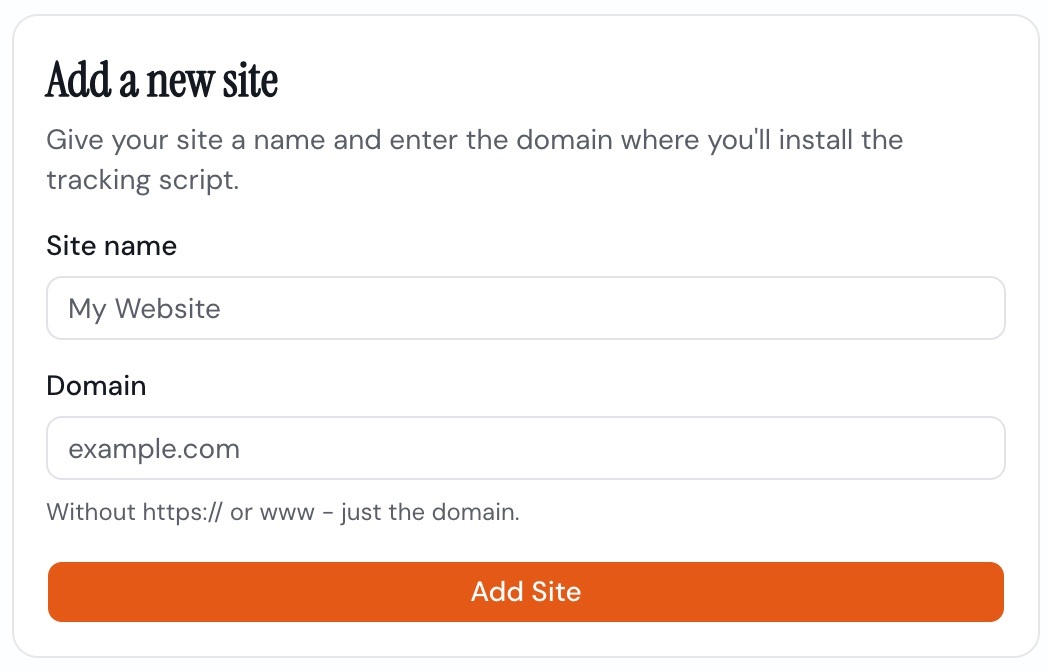
The new site is created with the default channel configuration and core fields enabled. You can then:
- Customise the channel rules for this site
- Choose which field groups to enable
- Install the tracking script on your site
Site limits by plan
Each plan has a maximum number of sites you can track:
| Plan | Sites included |
|---|---|
| Trial | 1 site |
| Starter | 1 site |
| Growth | 1 site |
| Pro | 1 site |
| Multi-site | 10 sites |
| Multi-site Plus | 30 sites |
If you’ve reached your plan’s site limit, you’ll need to upgrade to a higher plan before adding more sites. See Upgrade or Downgrade Your Plan.
Each site is independent
Every site in your account has its own:
- Tracking script with a unique Site ID
- Channel configuration (you can customise channels differently for each site)
- Field settings (different sites can have different field groups enabled)
- Cookie (the
_sourcetagcookie is set per domain) - Submission count (tracked separately per site)
This means you can run completely different attribution configurations for different websites, brands, clients or properties.
What counts as a “site”
A site is a single domain. For example:
example.comis one siteanotherdomain.comis a second siteshop.example.com(a subdomain) shares the same cookie asexample.comand typically uses the same SourceTag
Subdomains of the same root domain share the same cookie, so they don’t need separate sites. Attribution data persists as visitors move between subdomains. See Cross-Domain and Subdomains for details.
Managing multiple sites
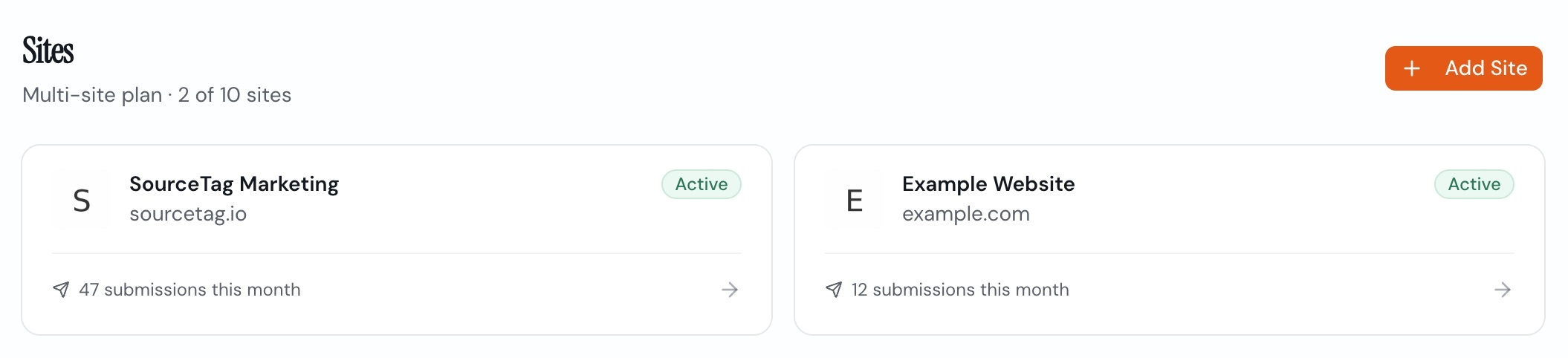
The dashboard home page shows all your sites in a list. You can:
- Click on any site to view and edit its configuration
- See the submission count for each site
- Switch between sites quickly
Editing a site
To change a site’s name or domain, click the pencil icon next to the site title on the site detail page. Update the fields and click Save.
If you change the domain, the script will only work on the new domain after the change. Make sure to install the script on the new domain and remove it from the old one if necessary.
Removing a site
To remove a site you no longer need:
- Go to the site’s detail page in the dashboard
- Scroll to the bottom
- Click Delete this site
- Confirm the deletion
Deleting a site removes its configuration and stops the tracking script from serving. This frees up one site slot on your plan. The site’s data cannot be recovered after deletion.
Remember to also remove the SourceTag script tag from the deleted site’s HTML.
Agency
If you manage multiple domains, the Multi-site (10 sites) or Multi-site Plus (30 sites) plans let you manage them all from a single SourceTag account. Each site has its own independent configuration and tracking.
Further reading
- Upgrade or Downgrade Your Plan to get more site slots
- Cross-Domain and Subdomains for understanding when you need separate sites
Doesn't answer your question or need more help? Get in touch.